Introduction
Ever tried opening a PST file outside of Outlook? You can't. PST is Microsoft's proprietary container format — and if you've been archiving calendar data in Outlook for years, your entire scheduling history might be locked inside one with no obvious way out.
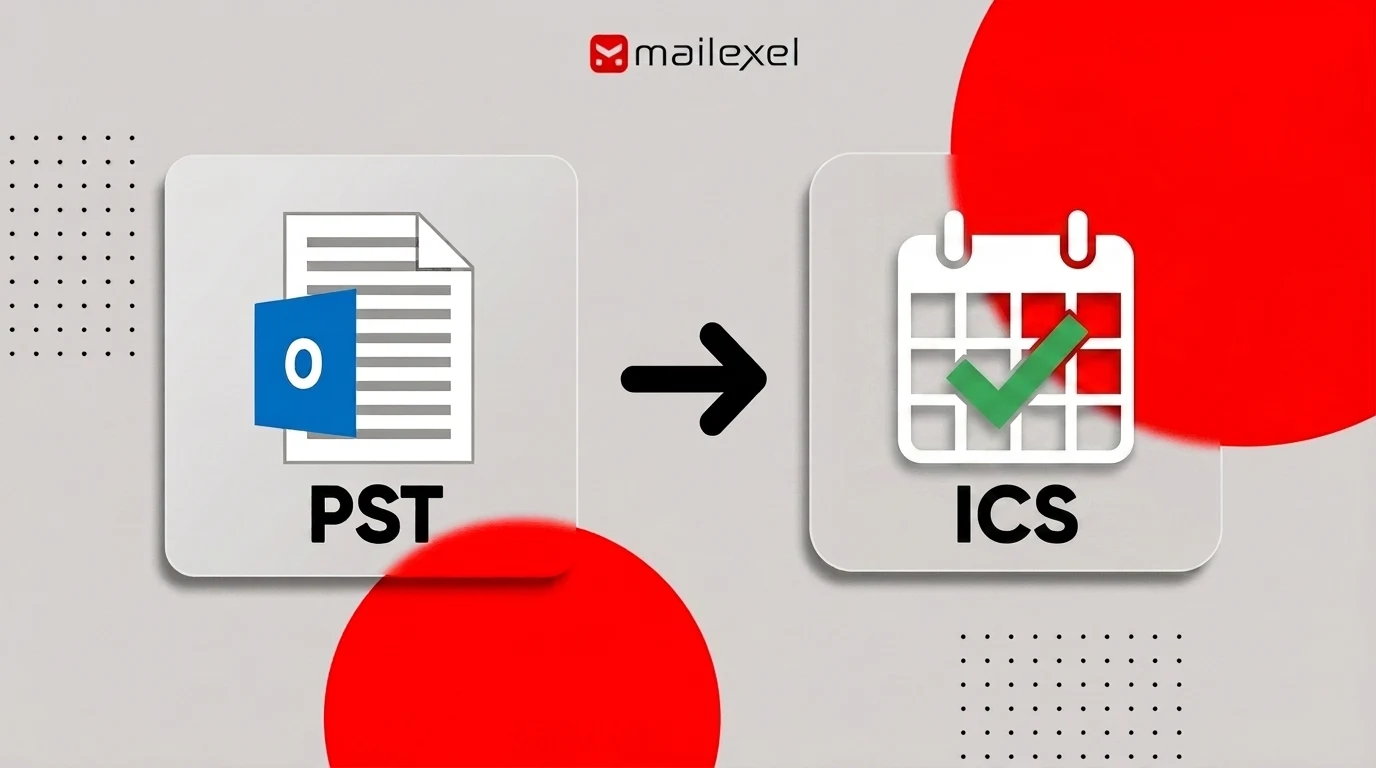
Converting PST to ICS is how you fix that. ICS is the open iCalendar format that virtually every calendar app on every platform reads natively — Google Calendar, Apple Calendar, Thunderbird, Zoho, all of them. This guide covers the two most reliable ways to make that conversion, what typically goes sideways, and how to get the result imported wherever you need it.
What Is an ICS File? (And How It Compares to PST)
ICS stands for iCalendar — the open standard that calendar apps everywhere read without issue.
The key difference from PST: PST is a proprietary Microsoft format that stores emails, contacts, calendars, and tasks all in one container. Designed specifically for Outlook on Windows. ICS is universal. Once your calendar data is in ICS format, you can open it in Google Calendar, Apple Calendar, Thunderbird, Zoho — basically anywhere that handles calendar data.
An ICS file holds more than just dates and times. You get the full event title, start and end times with explicit time zone data, location details, the attendee list with RSVP status, reminders — and for recurring meetings, the recurrence rule itself, not just a series of copied entries. Event descriptions and notes carry over too. If it was in the original calendar event, it should survive the conversion intact.
Here's a quick side-by-side:
| Feature | PST | ICS |
|---|---|---|
| Platform support | Windows / Outlook only | All platforms and apps |
| Contains | Emails, contacts, calendars, tasks | Calendar events only |
| Time zone handling | Stored, but Outlook-dependent | Explicit VTIMEZONE block |
| Recurring events | Yes | Yes (RRULE field) |
| File size | Can be very large (GBs) | Lightweight, text-based |
| Human-readable | No (binary format) | Yes (plain text) |
One thing worth flagging: ICS preserves time zone data, but only when the conversion captures it correctly. I've seen PST exports where the time zone offset got stripped silently — every event intact, just every appointment shifted by an hour on the receiving calendar. That's the kind of error you don't catch until someone complains three days after the import that their 9am meetings are all showing up at 8am. At that point you're already re-running the whole thing.
When Do You Actually Need to Convert PST to ICS?
The most common trigger is a platform migration — when a team moves from Exchange/Outlook to Google Workspace, and suddenly three years of calendar history needs to follow. ICS is the only bridge format that doesn't require rebuilding everything by hand on the receiving side.
But it's not always a migration. Sometimes it's someone digging up an old PST archive and realizing the only way to actually use those calendar records — without reinstalling Outlook on an old machine just to read them — is to convert to ICS first.
There's also the cross-platform sharing problem. If you need to send a calendar to someone on Apple Calendar, Thunderbird, or any web-based scheduling app, they're not going to open a PST. ICS is the one format they'll accept without workarounds. And for anyone thinking about long-term archive storage, ICS is just a better fit — it's lightweight, plain text, and readable without vendor software.
Why the Manual Outlook Export Has Real Limits
Outlook does have a built-in Save Calendar option. Calendar view → File → Save Calendar, save as iCalendar format. For a single calendar on a machine with Outlook installed, it works.
The wheels fall off once things get slightly more complicated.
- One calendar at a time: Multiple calendars in the PST means exporting each one individually. No batch option exists.
- Requires Outlook: No Outlook installation, no export. Rules out Mac users, Linux users, anyone working with archives from a machine they no longer have.
- New Outlook doesn't support it: Microsoft removed PST calendar import support from the updated Outlook client. If you're on new Outlook, the manual method is gone entirely.
- Large files stall or produce partial output: Here's one I learned the embarrassing way. I kicked off a manual export on a big PST archive, watched it churn for nearly an hour — went and made coffee, came back, it was still running — and when it finally wrapped up, a quarter of the events were just gone. No error. No popup. Nothing. I spent an awkward amount of time convinced I'd missed a setting before I finally found the culprit: an Outlook window I hadn't noticed was still open in the background, holding a read lock on the PST the whole time. Silent data loss. The calendar looked mostly fine right after the import. Three days later someone noticed they were missing their entire project review history going back months. Not my finest hour.
How to Convert PST to ICS (Fastest Method)
For anything past a single one-off export, a dedicated converter handles the job far more reliably than Outlook's built-in option.
I use MailExel for this step — not because it's the only option, but because it handles the VTIMEZONE block correctly in the output, which is the piece most free tools get wrong. That's the block where time zone data lives, and when it's missing from the ICS, every event in a different time zone shows up shifted. I've dealt with that problem enough times on other tools that I stopped experimenting.
To follow these steps, you'll need the software installed on your machine. If you haven't set it up yet, grab it here — it takes about a minute to install, then come back and we'll walk through it together.
Open the application and use the Add Files option to load your PST file. Or multiple files — the tool handles batch input without running separate jobs for each archive. Once added, everything appears in the main panel ready for scanning.
Once files are loaded, the software automatically scans all content — emails, contacts, calendar items, tasks, notes. Background process. No input needed. On most archives this wraps up in a couple of minutes.
Before running the full conversion, check the preview panel. Calendar folders should appear with event counts next to each one. Spend 60 seconds here. If a calendar is showing zero events when you know there should be several hundred, something went wrong at the load stage and it's a much shorter fix now than after a full conversion run has finished.
This is where I catch folder mapping issues — not after the fact.
In the output settings, choose ICS (iCalendar) as the target format. Set a destination folder somewhere easy to find later. Some converters let you filter by date range here, which is useful if you only need a specific window of calendar history rather than the whole thing.
Start the conversion. The tool processes the PST and saves ICS files to the chosen destination, preserving folder hierarchy. Larger archives take longer — a PST in the 8 GB range runs a few minutes. Output goes directly into any calendar app without additional steps.
How to Import ICS Into Your Calendar App
Once you have the ICS file, getting it into a calendar app takes about two minutes. Here's the process for each platform:
Google Calendar:
- Open Google Calendar and click the gear icon in the top right
- Select Settings, then Import & Export from the left menu
- Under Import, click Select file from your computer and choose your ICS file
- Pick which calendar to add events to, then click Import
Apple Calendar (macOS):
- Open Apple Calendar
- File → Import
- Select your ICS file and choose the target calendar
- Click Import
Outlook:
- File → Open & Export → Import/Export
- Select Import an iCalendar (.ics) or vCalendar file (.vcs)
- Browse to your ICS file and open it
- Choose to import events into your existing calendar
Thunderbird:
- Open Thunderbird, go to the Calendar tab
- Events and Tasks → Import
- Select your ICS file, click Open
The Free Manual Method (Outlook or Thunderbird)
If you need just one calendar and Outlook is installed, the built-in method works. Quick version:
Using Outlook:
File → Open & Export → Open Outlook Data File → select your PST. Switch to Calendar view, click the calendar you
want, then File → Save Calendar. Set the file type to iCalendar Format (*.ics), choose a save location, click Save.
Use More Options first if you need to restrict to a date range or set the detail level.
Repeat for every calendar in the PST. No batch option.
Using Thunderbird (when Outlook isn't an option):
Import the PST via Tools → Import → Outlook. Once the data is in, switch to Thunderbird's Calendar view, right-click
the calendar, and choose Export Calendar as ICS. Two-step workaround. Works reasonably well on smaller files — on
larger PSTs it can be slow and occasionally incomplete.
Common Problems and How to Fix Them
A few issues come up on almost every PST-to-ICS job. Worth knowing before you start.
Events showing at the wrong time after import.
Open the ICS file in any text editor. Look for a VTIMEZONE block near the top. If it's not there, the converter
didn't preserve time zone metadata and the importing app is defaulting to its own local time zone. Re-run with a
converter that explicitly outputs VTIMEZONE data.
Recurring events didn't come through.
Check the output ICS in a text editor — look for RRULE inside a VEVENT block. If it's absent, the recurrence rule
was stripped during export. This happens most often with the manual Outlook method on complex recurring patterns.
Zero events in the output ICS.
Wrong folder selected. PST files have a dedicated Calendar folder — if you pointed at the root of the PST or at an
email folder, the output comes back empty. The preview panel in the converter shows event counts before the run
starts, which catches this.
Incomplete output on large files — and why it's sneaky.
This one is the most frustrating because it fails silently. No errors. No warnings. The ICS just has fewer events
than it should. The cause is almost always a PST file that was still open in another application when the conversion
ran — Outlook, a backup tool, anything that puts a read lock on the file. I had this happen on a migration job where
the output looked fine until someone checked the calendar counts three days later. Check your event counts in the
preview before you close out of the converter. That's the only reliable catch.
Thinking about using a web-based converter?
PST files often contain private meeting content, contact details, and confidential communications. Uploading to an
unverified third-party server for conversion creates a data privacy problem that's hard to undo. For anything
sensitive, use a local tool that processes files on your own machine.
- Close Outlook before starting any conversion
- Verify event counts in the preview panel
- Check for a VTIMEZONE block in the output ICS
- Test a recurring event before importing the full batch
- Keep your original PST — conversion creates a new file, never touches the source
Frequently Asked Questions
Can I convert PST to ICS without Outlook installed?
Yes — that's actually one of the main reasons people reach for a dedicated converter instead of the manual method. The converter reads the PST file directly, no Outlook dependency. Especially useful if you're working with an archive from an old machine, or you're on Mac or Linux where Outlook was never in the picture.
Will the ICS file include attendees, recurring rules, and event attachments?
For the most part, yes. Attendee lists, recurrence rules, and time zone data come through cleanly with a dedicated converter. Attachments embedded in calendar events are more variable — depends on the specific tool and how it handles them. The preview panel is your friend here: check before you commit to the full run, particularly if attachments are important to you.
How do I convert multiple PST files to ICS at once?
Skip the manual method for this. Load all your PST archives into a dedicated converter at once, select ICS as the output, and run once. That's it. The manual Outlook export is a single-calendar-at-a-time operation with no shortcut around it.
Why are my calendar events showing at the wrong time after importing?
Almost certainly a time zone issue. Open the ICS file in any plain text editor and look for a VTIMEZONE block somewhere near the top of the file — it should be there if the converter captured time zone data correctly. If the block is absent, the converter stripped it, and the importing app defaulted to its local time zone instead. Fix is to re-run with a converter that preserves VTIMEZONE properly.
Does the conversion delete or modify my original PST file?
No — the output is a brand-new ICS file. The source PST is read-only as far as the converter is concerned. That said, keep a backup of the original. If the conversion settings weren't quite right, or you need a different output format down the line, you'll want the original PST to re-run from.
Wrapping Up
It comes down to two paths. If you're working with one calendar on a machine where Outlook is already installed and running, the built-in export option is fast enough. For everything else — multiple calendars, large PST files, batch conversions, or any situation where Outlook isn't installed — you want a dedicated converter that can read the PST directly and output clean VTIMEZONE-preserved ICS files.
The conversion itself is where the work happens. Once you have a clean ICS file, getting it into Google Calendar, Apple Calendar, or Outlook is a few minutes of clicking through an import dialog.
Dealing with a batch situation or running into a specific issue? Drop a question in the comments — happy to help troubleshoot.