Introduction
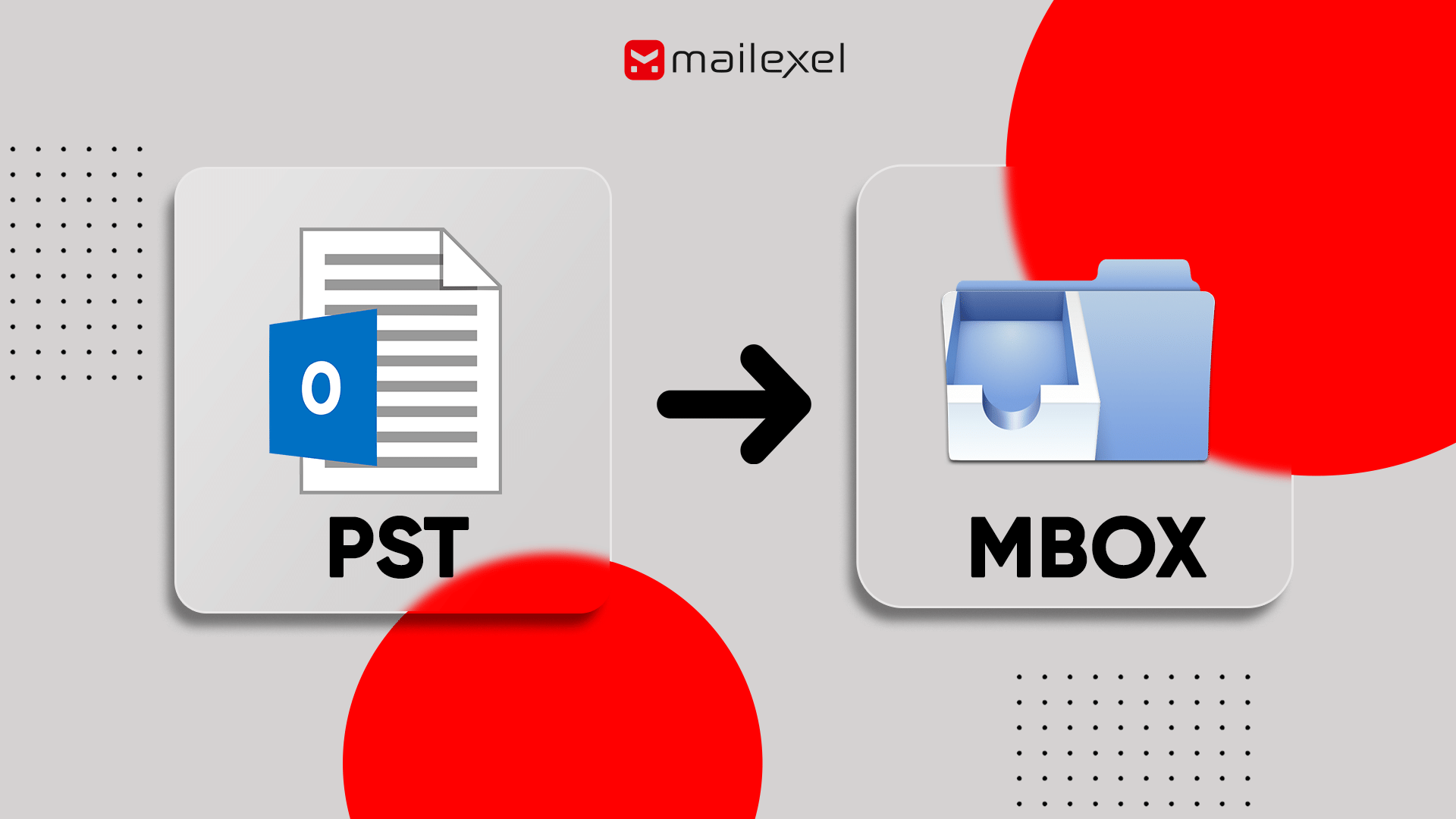
You've got a PST file and you need MBOX. Thunderbird, Apple Mail, Linux client — doesn't matter which. The PST to MBOX conversion isn't the hard part. Picking the right method for your file size is.
Get it wrong and you're redoing it. Missing attachments, flattened folders, a half-processed mailbox that looks fine until you start opening emails in the new client and realize something's off.
This guide covers both ways to do it — the free manual method and what a dedicated tool actually handles differently — so you can make the call before you start.
What's the Difference Between PST and MBOX?
PST (Personal Storage Table)
is Microsoft's proprietary format for Outlook. One binary file — emails, contacts, calendars, tasks, all packed together. Windows-only. Won't open on macOS or Linux. Won't open in Thunderbird. Locked to Microsoft's ecosystem, full stop.
MBOX
is the opposite. Open format, plain text, one file per folder. Runs on everything — macOS, Linux, Windows. Supported by Thunderbird, Apple Mail, Evolution, Mutt, and most other clients. No vendor owns it.
One thing most guides skip: MBOX only carries emails. Contacts, calendar entries, tasks — none of that transfers in the conversion. Export those separately before you start if you want to keep them.
Why Do People Convert PST to MBOX?
PST is useless outside the Microsoft world. That's the whole reason this email migration exists.
- Moving to Thunderbird — Thunderbird's native format is MBOX. PST files can't be opened in Thunderbird without conversion first.
- Switching to Apple Mail — Apple Mail uses MBOX. With Apple Mail holding roughly 54% of global email client market share (Litmus), this is one of the most common migration paths people take when leaving Outlook.
- Migrating to Linux — Every major Linux email client (Evolution, Geary, KMail, Mutt) uses MBOX. PST has zero Linux support.
- Setting up a Linux mail server — Dovecot, Zimbra, and similar servers use MBOX as the import format when migrating from Exchange.
- Long-term archiving — MBOX is plain text, readable on any OS, not tied to any vendor. PST could become unreadable if Microsoft ever drops it.
- eDiscovery and forensics — Many legal and forensic tools accept MBOX directly; PST support is less consistent across platforms.
How to Convert PST to MBOX Manually (and Why It Breaks)
There's a free method. Outlook, Thunderbird, and an add-on called ImportExportTools NG. Three pieces of software. Folder by folder. It works — on small mailboxes.
Download Mozilla Thunderbird and install it. Then open the Add-ons Manager, search for ImportExportTools NG, install it, and restart Thunderbird.
Open Microsoft Outlook on Windows and import the PST file via File → Open & Export → Import/Export. This loads the mailbox into Outlook so Thunderbird can read it.
In Thunderbird, right-click each folder → ImportExportTools NG → Export folder as MBOX file. Repeat for every folder you want to keep.
Here's where it stops working.
I've seen the Thunderbird add-on silently drop inline attachments on PST files over 3 GB — no error messages, nothing flagged. The export completes, you open the emails in MBOX, and the attachments are just gone. First time this happened I spent a while assuming the original emails had been sent without attachments before I traced it back to the export. It's the kind of failure you don't catch until you've already moved on.
- Crashes above 5 GB — Files over 5 GB frequently cause Thunderbird to crash mid-export or produce incomplete MBOX output.
- Folder structure flattening — Nested subfolder hierarchies often get flattened or lost during the export.
- No preview — No way to check what converted correctly before you're done. Errors are invisible until you're in the new client.
- Windows-only — Requires both Outlook and Windows. Not an option if you've already switched to Mac or Linux.
Under 2 GB, simple folder structure, Windows machine with Outlook installed? The manual method is fine. Anything else, it's not worth the risk.
How to Convert PST to MBOX: The Exact 5-Step Process
A dedicated PST converter skips all of that. Large files, batch processing, live preview before you commit to anything. And it runs on Mac. Here's the exact process.
To follow along, you'll need the software on your machine. If you haven't downloaded it yet, grab it below — installation takes about a minute. Then come back and we'll walk through each step.
Open the software and load your PST files — drag-and-drop or use the built-in file browser. I use MailExel for this specifically because it includes an automatic file search. On corporate machines, Outlook often stores PST files deep in AppData subfolders most people have never navigated to. Most converters make you find the path yourself. MailExel hunts it down — small thing, but it saves real time when you're working on someone else's machine.
Once your files are loaded, the software takes over. Scans everything automatically — folder tree, email subjects, senders, dates, attachment names. Nothing to do here. Just wait for it to finish.
Sixty seconds. Check your folder structure, email counts, attachments.
This step has saved me more than once. I caught a misconfigured source path in the preview that would have produced a completely empty MBOX output — nothing in it. Found it in 10 seconds. If I'd skipped the preview and run the conversion, I'd have had a completed job with zero emails and no idea why.
Choose MBOX as the output format and set your destination folder. Use the filter options if you only need part of the mailbox — date range, specific folders, sender, subject. No reason to process a 40 GB PST when you only need two years of email.
Hit convert. One MBOX file per folder, mirroring your original folder structure exactly. No flattening, no stripped metadata. To, CC, BCC, Subject, Date — all intact.
A 5 GB PST runs in under 10 minutes on a mid-range machine. Larger mailboxes in the 30–50 GB range usually finish in 20–40 minutes. Attachment-heavy mailboxes take longer than text-heavy ones at the same file size.
What to Look for in a PST to MBOX Converter
Not every PST converter handles large files or edge cases reliably. This is what actually separates the ones worth using:
- Live preview before conversion — Non-negotiable. If a tool skips this, there's no way to catch errors before they're permanent.
- No Outlook installation required — Essential for Mac users or anyone already off Windows.
- Batch conversion — Process multiple PST files in one session. One-at-a-time is impractical for anything beyond a single personal mailbox.
- Attachment preservation — Inline images, embedded files, standard attachments must survive intact. This is where most free tools fail.
- Folder hierarchy maintenance — Subfolder structure should come out exactly as it went in.
- Large file support — Files over 10 GB are common. Any tool that crashes or requires splitting first isn't production-ready.
- Selective filtering — Date range, folder selection, sender/recipient filters. Critical for partial migrations.
- Password-protected PST support — Encrypted PST files are common in enterprise environments. Many free tools can't open them.
- Metadata preservation — To, From, CC, BCC, Subject, Date must come through intact.
Frequently Asked Questions
Do I need Microsoft Outlook installed to convert PST to MBOX?
Not with a dedicated converter tool. Tools that use their own PST reading engine work without Outlook — which is why they're the only option for Mac and Linux users who don't have it installed.
Can I convert PST to MBOX on a Mac?
Yes, but not with the manual Thunderbird method — that requires Outlook on Windows. A dedicated PST converter that runs natively on macOS handles the conversion without Outlook installed. Load the PST file, select MBOX as output, and run. Folder structure and attachments come through the same as they would on Windows.
Will my attachments come through after conversion?
Yes, with a proper converter. The attachment data is embedded in the email file and travels through the conversion intact. Always check attachments are visible in the preview before running the full job. If they're missing in the preview, they won't be in the output.
Can I convert multiple PST files at once?
Yes, with a tool that supports batch conversion. Load all your PST files in one session and convert them together. The manual Thunderbird method has no batch option — it's one folder at a time, which makes it impractical for large or multi-file migrations.
What happens to my calendar events and contacts during conversion?
They don't transfer. MBOX is email-only. Calendar entries, contacts, and tasks stored in your PST won't appear in the MBOX output. Export those separately before you start if you need to keep them.
How long does a PST to MBOX conversion take?
A 5 GB PST converts in under 10 minutes on a standard machine. Larger mailboxes in the 30–50 GB range usually take 20–40 minutes in batch mode. The main variable is attachment density — lots of large attachments will add time at any file size.
Is the original PST file affected by the conversion?
No. Conversion is non-destructive — the tool reads your PST and writes the MBOX output as new files. Your original PST is untouched. Still, work from a backup anyway. It's the one habit that matters when something goes wrong mid-job.