Introduction
The first time I moved PST data to an IMAP server using Outlook's drag-and-drop, the sync dropped halfway through a large folder. I restarted it. It ran everything again from the beginning — no way to tell it what had already been copied — and I ended up with somewhere around 800 duplicate emails sitting in the destination mailbox. Cleaning that up took longer than the original migration would have taken if I'd done it right.
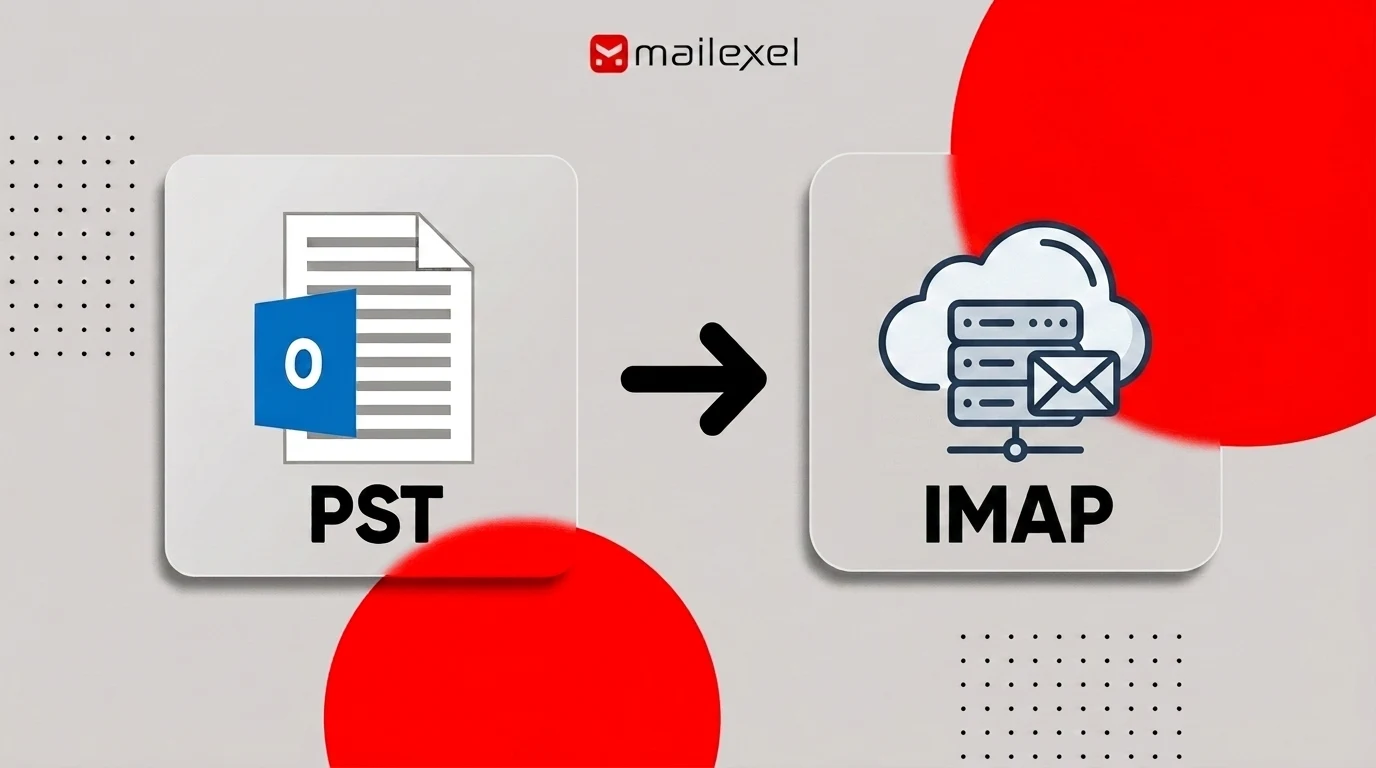
PST and IMAP don't naturally talk to each other — PST is a local file format, IMAP is a live server protocol. Getting data from one to the other takes either Outlook acting as a bridge or a dedicated tool that reads the PST directly and pushes to the server. Here's how both options work, what each one is suited for, and how to run it cleanly.
PST stores email locally on a hard drive. IMAP keeps it on a server — accessible from any device, synchronized in real time. Moving from one to the other is a real migration, not just an import, and the gap between the formats is where things go wrong.
Most people reach for Outlook first because it's already there. It can work — but it has limits that aren't obvious until you're already in the middle of something going wrong. Dedicated converters read PST directly and push to the server without those constraints. The choice between them comes down to archive size and how much you want to deal with an interrupted sync.
Two Ways to Move PST to IMAP
Outlook is what most people reach for first. The workflow: open the PST as a data file in Outlook, add the IMAP account as an active account alongside it, then drag folders from the PST side into the IMAP account side. Outlook handles the sync to the server in the background. It's free and requires nothing extra. For a small, clean archive — a few gigabytes, one-time job, nothing complicated — that's often enough.
The limits show up fast once the archive gets large. Outlook's IMAP sync is slow by design; it wasn't built for bulk migration. Thousands of small emails drag out significantly. And the restart problem is the real killer — if the connection drops or Outlook crashes partway through, there's no checkpoint. It starts from the beginning of whatever folder you were syncing, copying everything again. That's where the 800 duplicates situation at the top of this article came from. Cleaning that up manually was genuinely unpleasant. Contacts and calendar entries don't make the trip either way; Outlook's drag-and-drop moves email only.
A dedicated PST converter takes a fundamentally different approach. It reads the PST directly — no open Outlook instance required — and pushes to the IMAP server as a single coordinated job. It tracks what's already been uploaded, so if the connection drops, resuming doesn't re-copy anything. Folder hierarchy maps to server folders. Large archives — well past the 10GB range where Outlook starts struggling — run without the stalling. Most tools also let you filter by date, skip folders you don't want migrated (Deleted Items, Junk, anything irrelevant), and handle multiple PSTs as one batch. For Gmail, Office 365, Yahoo, Zoho, Zimbra, or any standard IMAP host, this is the more reliable path for anything beyond a small personal archive.
What Transfers — and What Doesn't
Email comes over. Messages land on the IMAP server with headers, body, timestamps, and attachments. Your PST folder structure becomes folders on the server, which shows up as labels or nested folders depending on the client.
Contacts are the one everyone forgets. IMAP is strictly email — the protocol has no concept of a contact record or a calendar event. So none of that comes over. Calendar events, tasks, notes — same situation. If your PST has all three, you're looking at separate export passes after the email migration: contacts out as vCard or CSV into your contacts app, calendar events as ICS into your calendar. The email migration finishing successfully tells you nothing about whether contacts made it. A lot of people find out they're missing their address book a week later, when they try to compose an email and realize nothing autofills.
One thing that trips people up: folder structure behavior differs between methods. With Outlook drag-and-drop, deeply nested folder hierarchies often get flattened or dropped at certain levels. With a dedicated converter, folder mapping is explicit — you can see what will land where before running, and you can exclude specific folders (like Deleted Items) you don't want migrated.
How to Import PST to an IMAP Server (Step-by-Step)
The Outlook drag-and-drop works for small archives — under a few gigabytes, straightforward folder structure, one-time job. For anything larger, or if you want clean folder mapping and no duplicate risk, a dedicated converter is the practical path.
I've run a fair number of these migrations. The tool I keep using is MailExel — reads PST directly, connects to the IMAP server with standard credentials, migrates with folder hierarchy intact. The 800 duplicates situation I described at the top happened before I started using it. That was the thing that pushed me off Outlook drag-and-drop for anything over a few gigabytes.
Before starting: confirm the PST isn't password-protected. Open it in Outlook, check File → Account Settings → Data Files, and remove any password there. Then close Outlook — it holds the PST open while running, which blocks other tools from reading it.
Also check IMAP server storage quota. A migration that stops at 80% because the mailbox hit its limit is annoying to unwind.
To follow these steps, you'll need the software installed. Download it below — takes about a minute, then come back and start at Step 1.
Launch the application and use Add Files to bring in your PST — or Add Folder if you're processing multiple PSTs from several accounts. Everything loads as one job. Files appear in the main panel ready for scanning.
The software scans everything in the PST automatically: emails, contacts, calendars, notes, tasks. Nothing to do here. Most archives are done in a few minutes; larger PSTs take proportionally longer.
The preview shows your full folder structure with item counts. Look at this before running anything.
This is where you catch what you don't want migrated — a Deleted Items folder from years of cleanup, a Junk folder with ten thousand filtered messages, a shared folder from an account that ended up in the PST by accident. Exclude what you don't need before running. It's much easier than cleaning up a destination mailbox after the fact.
Select IMAP as the destination. You'll need the server hostname (e.g., imap.gmail.com, outlook.office365.com, imap.mail.yahoo.com), port number (typically 993 for SSL/TLS), and your email address and password. Most dedicated converters auto-detect hostnames for common providers when you enter the email address.
If you only need a specific date range — migrating one period's worth of email from a long archive — set that filter here before running.
Start the export. The tool connects to the IMAP server and pushes emails folder by folder, mapping your PST folder structure to server folders. When it finishes, open your email client and spot-check a few folders — body content, headers, and attachments. At least one folder that had large attachments.
Common Problems and How to Fix Them
Most PST to IMAP migrations run into at least one of these.
Duplicate emails after a failed sync.
This is the Outlook drag-and-drop failure mode. The sync dropped mid-folder, you restarted it, and it copied everything again from the beginning of that folder. There's no checkpoint and no built-in dedup. If you're already in this situation, you'll need to clean up manually or find a deduplication add-in. Going forward: before restarting any Outlook drag-and-drop, check which folders already landed on the server and only drag the ones that haven't synced yet. Dedicated converters don't have this problem — they track what's been uploaded and skip it on restart.
Sync is stalled or has been running for days.
Outlook's IMAP sync wasn't designed for bulk migration. A large PST — 10GB or more — can genuinely take days. If you're past the point of patience, either chop the PST into smaller date-range batches and drag those individually, or switch to a dedicated converter. Migrating during off-peak hours also helps if the server has throttling in place.
Folder structure arrived flat on the server.
Outlook drag-and-drop frequently loses deeply nested hierarchies. If you used a converter and still see flat structure, check the folder mapping settings — most tools let you control exactly how folders map to the server and whether nesting is preserved. Re-running with the correct settings is faster than trying to reconstruct the hierarchy manually after the fact.
Converter won't open the PST.
Usually one of two things: Outlook is still running and has the file locked (close it and retry), or the PST has corruption from an improper shutdown. Run ScanPST.exe — search for "Inbox Repair Tool" in Windows — and let it scan. If ScanPST can't repair it, try the converter's built-in recovery mode; dedicated converters often pull usable content out of PSTs that Outlook itself won't touch.
Authentication errors connecting to the IMAP server.
Check hostname, port, and credentials first — easy to get port wrong, 993 for SSL/TLS is standard. Gmail with two-factor authentication requires an App Password, not your regular Gmail password; the regular one will always fail. Office 365 may require Modern Authentication to be enabled at the org level. Zoho and Yahoo both have IMAP access toggles in their account settings that are off by default on some plans — worth checking before assuming a credential problem.
-
Remove passwords from PST files before starting. Close Outlook before running any migration — it locks the PST when open. Run ScanPST.exe on any PST from a machine that shut down improperly. Check IMAP server storage quota before starting. Verify the preview panel — exclude Deleted Items, Junk, and any folders you don't need. Plan separate export passes for contacts (vCard/CSV) and calendar (ICS). Spot-check emails and folder structure in your email client after migration. Keep the original PST until you've confirmed everything landed correctly.
Frequently Asked Questions
Can I migrate a PST larger than 10GB to an IMAP server?
With Outlook's drag-and-drop method, files over 10GB become slow and unreliable — long runtimes, stalling, and duplicate risk on restart. A dedicated converter doesn't have this constraint; it handles large archives without the IMAP sync bottleneck. For any PST over 5GB, a converter is the more reliable path.
Will contacts and calendar entries transfer to my IMAP server?
No. IMAP is an email-only protocol. Contacts and calendar events don't travel with the email migration. Export contacts as vCard or CSV and import them into your contacts app separately. Export calendar entries as ICS and import them into your calendar app. Plan for these as separate steps after email.
How do I avoid duplicate emails if my migration is interrupted?
With Outlook drag-and-drop, there's no built-in duplicate prevention — if the sync restarts, it copies again. To avoid this, check which folders have already synced before restarting, and only drag folders that haven't been synced yet. Dedicated converters track migrated items and won't re-push what's already on the server, so interruptions don't create duplicates.
Will my Outlook folder structure come through on the IMAP server?
Outlook drag-and-drop often flattens or loses deeply nested folder hierarchies. Dedicated converters preserve folder structure and let you preview exactly how folders will map to the server before running. After migration, check your email client's folder list to confirm everything landed correctly.
Which IMAP servers does PST migration work with?
Any standard IMAP server. Common targets include Gmail (imap.gmail.com, port 993), Office 365 (outlook.office365.com, port 993), Yahoo (imap.mail.yahoo.com), Zoho, Zimbra, cPanel-based hosts, and any server that accepts standard IMAP credentials. For Gmail, use an App Password if two-factor authentication is enabled.
Wrapping Up
For small archives — a few gigabytes, email only, no complicated folder structure — Outlook drag-and-drop is free and gets the job done. For anything larger, or if you need reliable folder preservation and no duplicate risk, a dedicated converter is the practical choice.
Either way: remove passwords first. Close Outlook before running. Check storage quota. Exclude the folders you don't need. Do contacts and calendar as separate passes after email. Spot-check in your email client when it's done.
Got a specific situation giving you trouble? Drop it in the comments.