Introduction
What You'll Learn:
-
What PST-to-TXT conversion gives you and which use cases it's actually built for
-
Why Outlook's manual Save As method fails on anything larger than a handful of emails
-
How to export a full PST archive to individual TXT files in one job
-
What's actually inside each TXT output file — fields, format, what to expect
-
Common output problems and the specific fix for each one
Got a PST file overflowing with emails, but all you really need is the plain text? Sounds simple. It's not. Outlook's built-in Save As and a dedicated converter produce wildly different outputs — and you usually only figure that out when you're already neck-deep in a mess you didn't see coming. One option mashes everything into a single file. The other neatly extracts each email into its own TXT file, preserving your original folder structure intact. Choose wrong at the start, and you're redoing the entire job from scratch.
This guide covers both paths. You'll know exactly when the manual method works, why it breaks for larger jobs, and how to get a clean, consistent TXT archive from any PST file — including what the output file actually looks like before you try to use it somewhere.
What Is PST-to-TXT Conversion (And Who Actually Needs It)?
Think of a TXT file as the bare minimum: no formatting, no embedded images, no proprietary encoding. Just raw, readable characters that any tool on any system can open without a fuss.
For a lot of workflows, that's not a limitation. That's the whole point.
PST files are locked to Outlook. TXT files work in Notepad, VS Code, any text editor, grep, Python, Excel, practically anything. When you need email content to move into a different workflow, TXT often removes the most friction.
Here's who reaches for TXT output:
-
Data analysts and engineers building NLP pipelines, training datasets, or sentiment analysis models. TXT is the cleanest input format — no HTML tags to strip, no formatting to parse around.
-
Compliance and legal teams running keyword searches across email archives. A grep script or a search tool that works on plain text files doesn't need Outlook installed.
-
IT teams archiving old mailboxes where long-term readability matters. TXT files will open in 20 years. PST files might not, without the right version of Outlook.
-
Anyone importing email content into a database, CRM, or analytics tool where plain text is the expected input format.
For a legal keyword search audit, the team's tool was a grep script — it ran against text files, not email clients. They didn't need formatting or images. TXT was the only format that fit their workflow without additional preprocessing.
TXT is the best format when your destination tool works with plain text inputs — databases, search scripts, NLP pipelines. If you need formatting or images preserved, look at HTML or MHTML instead.
Why Outlook's Manual Method Falls Short
Outlook has a manual export path. Open an email, File → Save As, choose Text Only (.txt) from the dropdown, save.
For one email, it works fine.
The problems start the moment you try to scale it.
Multiple emails merge into a single file.
Here's the one that catches most people off guard. If you select several emails in Outlook and try Save As → Text Only, they all go into one TXT file — not individual files per email. If you need one TXT file per email, Outlook's manual method can't do it. You'd have to open and save each email individually, one at a time.
Body content is inconsistent in merged exports.
When you save multiple emails together, body content is unreliable — some come through fine, some don't. I spent a full afternoon on this once. A client's folder, maybe 300 emails, and I thought I'd gotten through it cleanly. Only later, well into reviewing the output, did I realize a chunk of them — probably 20%, maybe more — were just bare headers. From, To, Subject, Date. Body completely gone. No error, no flag, nothing to tell me something was wrong. I had to go back through the whole file manually to figure out which ones were incomplete. Not fun. There is genuinely no easy way to catch it without reading the entire output.
No individual file output.
This is the practical dealbreaker for any workflow that needs per-email files. If you're building a text corpus, running a search audit, or importing into a database, you need one TXT per email. Outlook doesn't offer that.
Attachments are excluded.
The manual Save As → TXT captures the message text only. Attachments are not referenced and not exported.
No folder structure.
Save As operates on whatever you've selected. It has no awareness of your PST folder hierarchy — Inbox, Sent Items, subfolders are all flattened.
Newer Outlook versions may not offer TXT.
Depending on the Outlook version and the email's original format, the Text Only option doesn't always appear in the Save As dropdown. Some users report only seeing .eml as an option in current versions.
Selecting multiple emails in Outlook and using Save As → Text Only merges them into a single file with inconsistent body content. For individual TXT files per email, you need a dedicated converter.
How to Convert PST to TXT (The Fast Method)
A dedicated converter reads the PST directly and exports each email as its own TXT file, with consistent field headers and complete body content, across your entire folder structure in one job.
After working through a few options, the one that keeps earning its spot for serious PST-to-TXT work is MailExel. No Outlook required. Individual files per email. Handles large archives without falling over — I've run it on an 18 GB PST, roughly 8,000 messages for a text analysis project, and the output was consistent from file one to file eight thousand. That kind of reliability is hard to overstate when you're handing output to a pipeline.
To follow these steps, you'll need the software installed. Download it below — takes about a minute, then come back and start at Step 1.
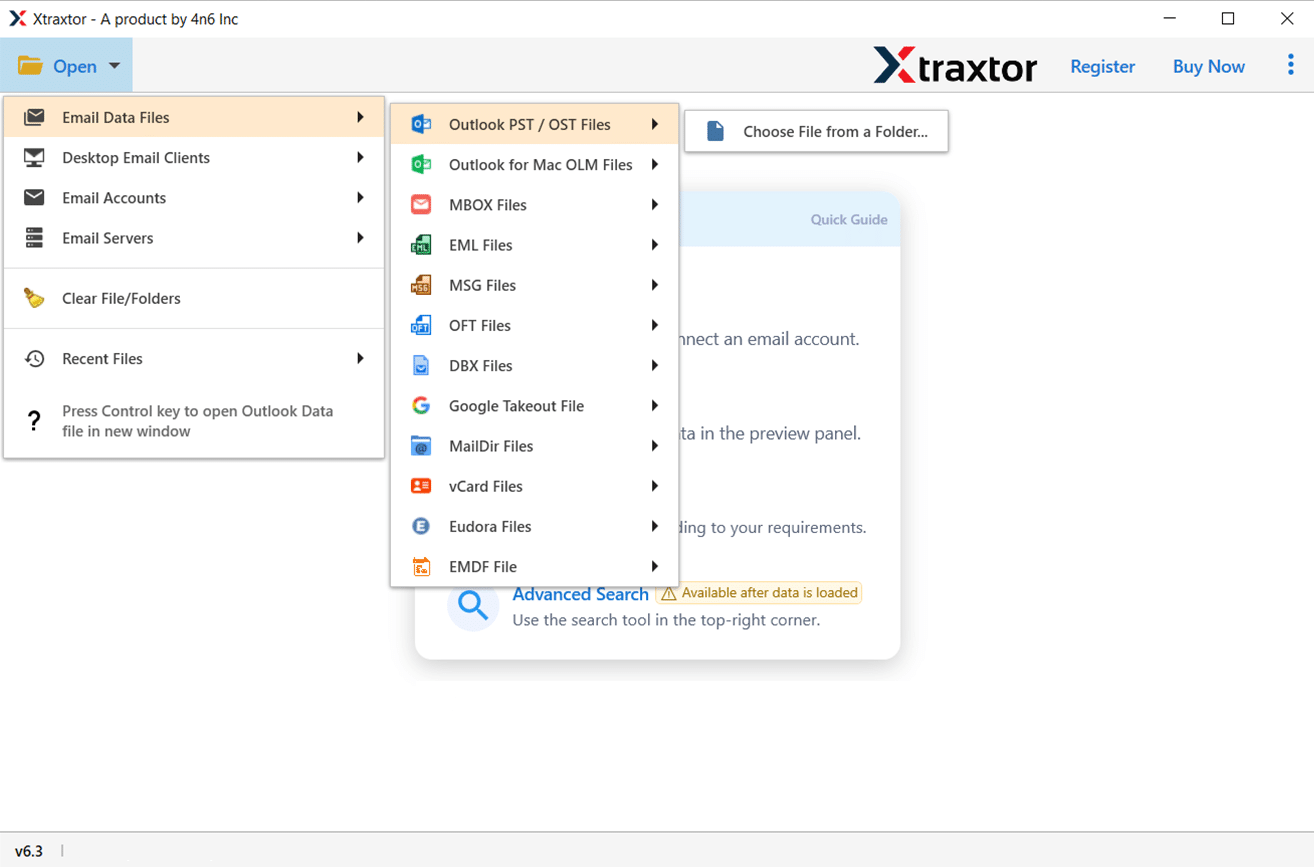
Launch the application. Use Add Files to bring in your PST file — or multiple files if you're working with archives from several accounts. Loading everything together runs as one job. Once added, all files appear in the main panel ready for scanning.
Once your files are loaded, the software automatically scans all content in the PST — emails, contacts, calendars, notes, tasks. You don't do anything at this stage. On most archives this completes in a few minutes; larger PSTs take proportionally longer.
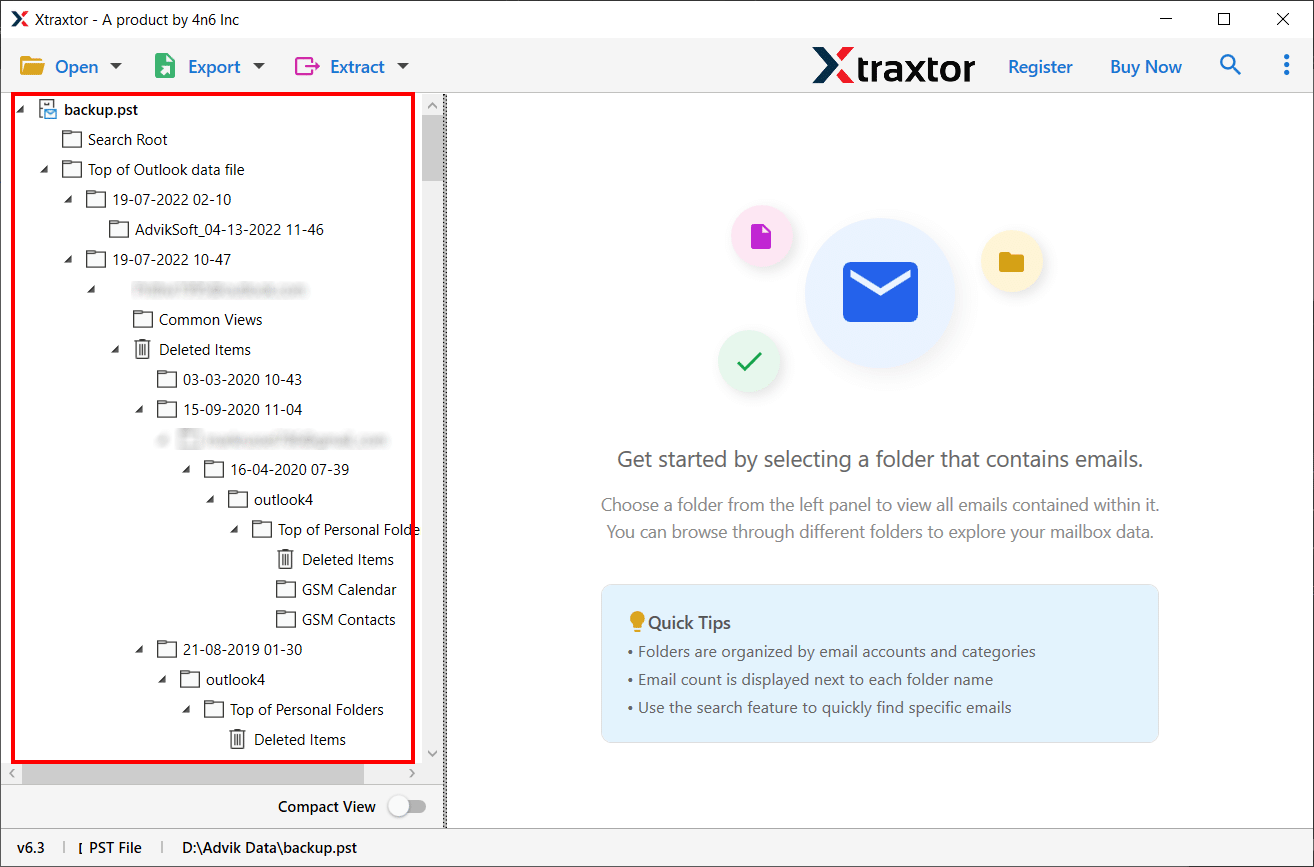
Before running the export, check the preview panel. Your folder structure appears with item counts — Inbox, Sent Items, Contacts, subfolders. Take 60 seconds here.
I once found four subfolders in the preview that the client hadn't mentioned — about 500 emails in a "Clients" folder buried two levels deep. Nobody had included them in the scope. Checking the preview before running saved that job from a major gap.
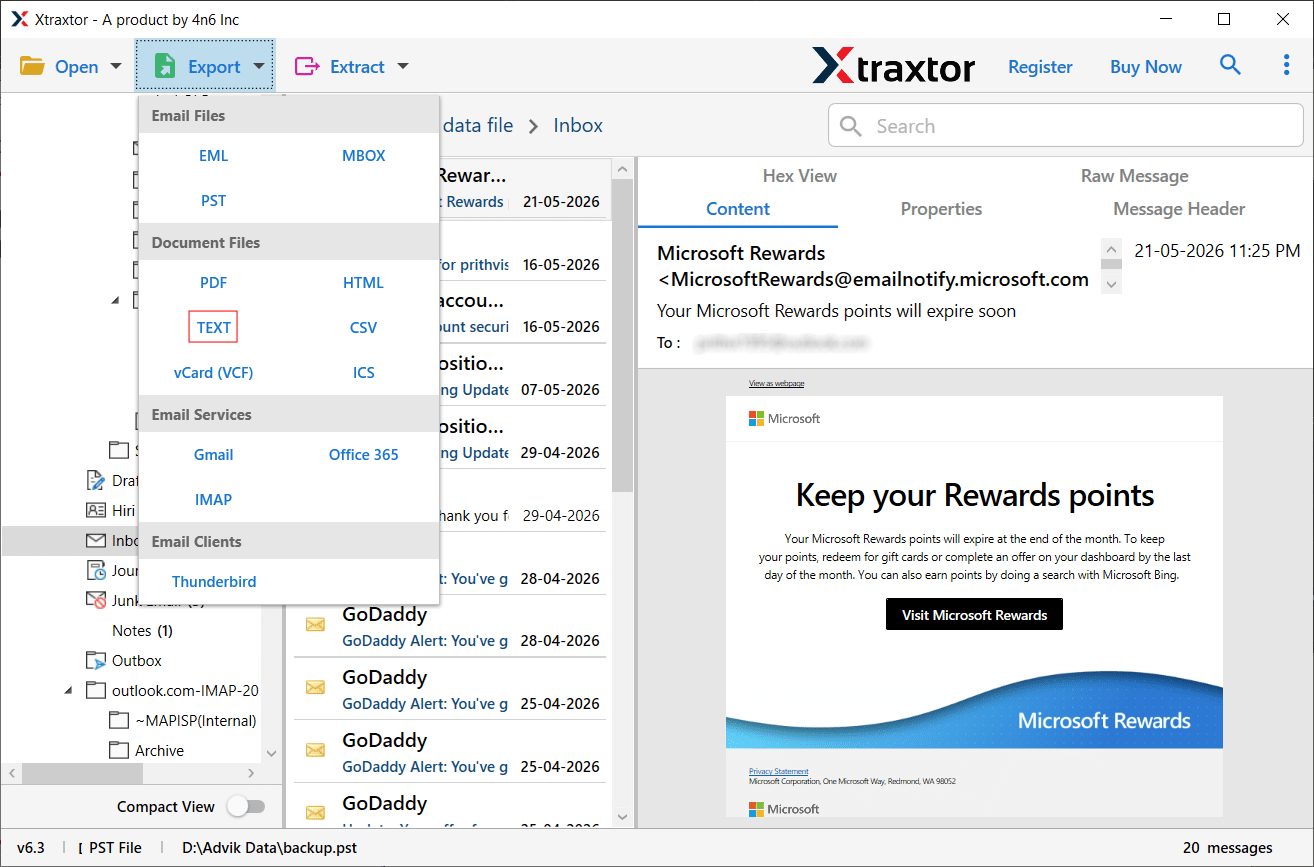
In the output settings, choose TXT as the target format. Set a destination folder that's easy to find. If your downstream tool needs specific field headers or a particular encoding (UTF-8 is generally safest), check those settings before you run.
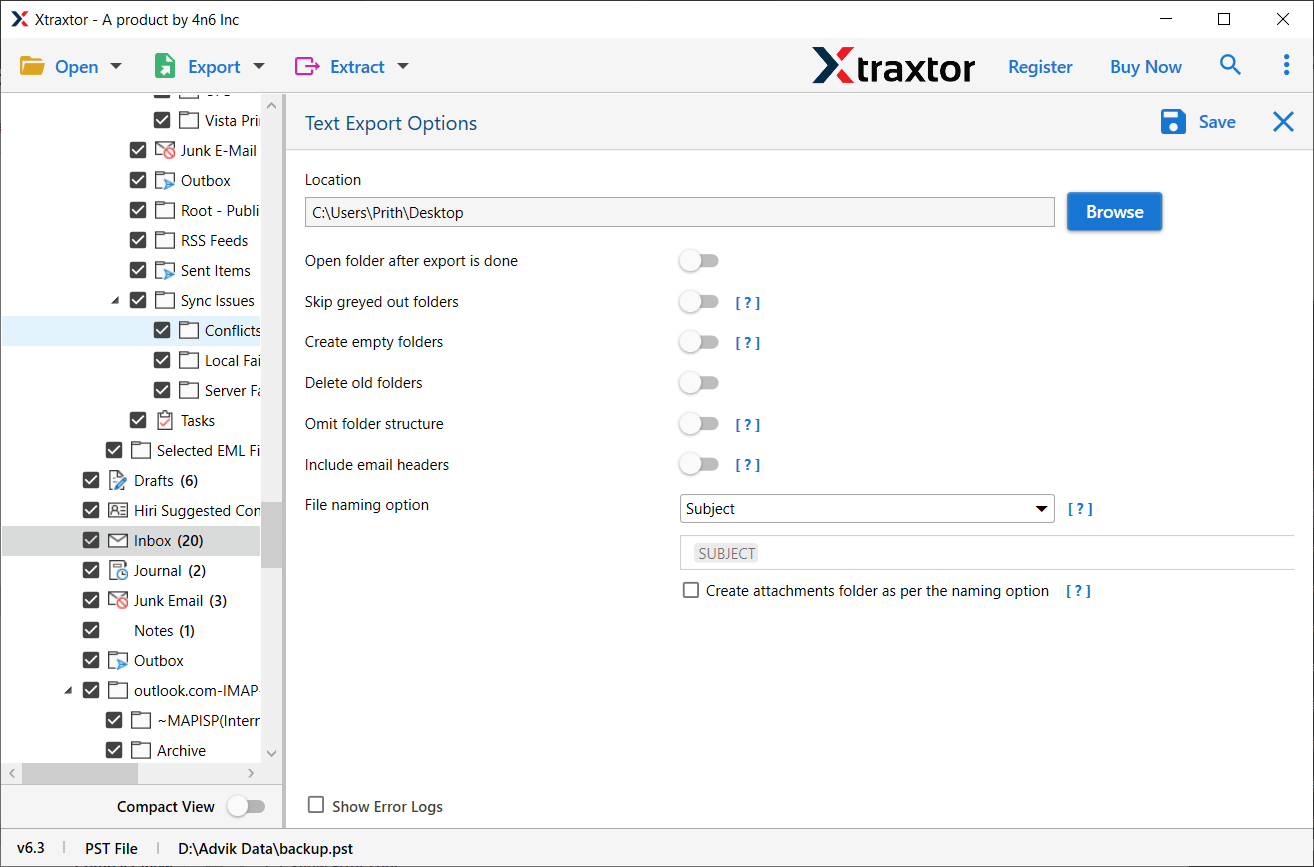
Start the export. The tool processes all selected folders and writes individual TXT files to your destination. A PST with a few thousand messages typically finishes in under 10 minutes. Open a handful of output files in a text editor and verify the field structure looks right before you hand them off or import anywhere.
What's in Your TXT Output: Fields, Format, and What to Expect
So you've got your TXT files. Before you send them off to a pipeline or a legal team, let's actually look inside one. The structure is simple — almost stark, if you're used to seeing emails in Outlook. But knowing what to expect here saves a lot of "why does this look like that?" moments when the output lands somewhere downstream.
A standard TXT export from a PST produces a simple block structure per email:
From: sender@example.com To: recipient@example.com Cc: cc@example.com Subject: Meeting Thursday Date: Mon, 12 May 09:34:00 +0000 [message body here]
The header block comes first — From, To, Cc, Bcc, Subject, Date. Then a blank line. Then the message body as plain text.
A few things to know about what you'll actually see:
HTML emails get stripped to plain text.
If the original email was composed in HTML, the formatting disappears. Bold text becomes regular text, links show as plain URLs, tables collapse into flat text. That's the tradeoff with TXT — everything readable, nothing formatted.
Attachments are listed, not embedded.
TXT can't store binary files. A good converter will note attachment filenames in the output, typically as a line at the bottom of the file. The actual files get exported to a separate folder alongside the TXT files.
Encoding matters more than you'd expect.
If your archive includes emails with international characters or non-Latin scripts, make sure your converter outputs UTF-8. ASCII encoding will garble those characters and you won't always notice until a downstream script fails.
Body truncation is a real issue with some tools.
After any TXT export, I spot-check by opening a known long email in the output and scrolling to the end. Some tools clip body content at a character limit with no warning — the file just ends mid-sentence. If you're feeding these files into an NLP pipeline or search index, truncated bodies create silent data quality problems.
Check your TXT output in a proper text editor like Notepad++ or VS Code rather than Notepad. Notepad can misrender line endings and encoding, making some files look garbled when they're actually fine.
Common Problems and How to Fix Them
A few issues come up regularly on PST-to-TXT jobs.
All emails landed in one file instead of individual TXT files.
You used Outlook's manual Save As method with multiple emails selected. That's not a bug — it's how Outlook works. The only way to get one TXT file per email through Outlook is to open and save each one individually. For batch-to-individual, switch to a dedicated converter.
Message body is missing or shows as blank.
Two causes. If you used Outlook's manual method on a merged export, body content is inconsistently preserved — some emails lose their body content with no warning. For converter-based exports, check whether the email was originally in plain text format vs. HTML — some converters export the body differently depending on source format. Running the conversion again with explicit "plain text body" settings usually resolves it.
Characters are garbled or show as question marks.
Encoding mismatch. The output needs to be UTF-8. Open the TXT file in Notepad++ or VS Code, check the encoding displayed in the status bar, and convert to UTF-8 if it shows something else (Windows-1252, Latin-1, etc.). Better fix: configure your converter to output UTF-8 before running the job.
Attachments are missing entirely.
TXT files can't store binary data. Attachments won't be embedded in the TXT output — that's expected behavior. A good converter exports them to a separate folder alongside the TXT files. Check your output destination for a subfolder named something like "attachments." If there's nothing there, check the converter's settings to confirm attachment export is enabled.
Fewer emails in the output than expected.
Either Outlook was running during the export (it can lock the PST — close it first), or the converter only processed the top-level folder and ignored subfolders. Use the preview panel before running to verify folder counts match what you're expecting.
TXT files look fine but import fails downstream.
Usually a line ending mismatch. Unix tools expect LF line endings; Windows tools expect CRLF. Open in VS Code, check the line ending indicator at the bottom, and convert if needed (View → Line endings).
- Close Outlook completely before starting any PST export. Work from a copy of the PST, not the live file. Check the preview panel to confirm all folders and counts are what you expect. Configure UTF-8 encoding before running the conversion. Spot-check 3-5 TXT files in a proper editor before using them downstream. For attachments, look in a separate folder alongside the TXT output files. Keep the original PST — the converter writes new files, never modifies the source.
Frequently Asked Questions
Yes. A dedicated converter reads the PST file format directly and doesn't need Outlook on the machine. This is
one of the main practical advantages — it means you can process archived PST files from old or decommissioned
machines without reinstalling Outlook.
That depends on the method. Outlook's manual Save As → Text Only merges all selected emails into a single file.
A dedicated converter exports individual TXT files per email and preserves folder structure. If you need
per-email files — for search indexing, NLP, or importing into a database — you need a converter, not the manual
method.
Not inside the TXT file. TXT is plain text and can't store binary files. Attachments are typically noted by
filename in the output file, and a dedicated converter exports the actual attachment files to a separate folder
alongside the TXT output. If you need attachments, check your converter settings before running.
UTF-8 is the safest default and works across all platforms and tools. If your archive includes international
characters or non-Latin scripts, UTF-8 is required to avoid garbled output. Some older converters default to
ASCII or Windows-1252, which will corrupt characters outside the basic Latin set.
Sometimes. Dedicated converters read the PST format directly rather than going through Outlook's file handler,
so they have more tolerance for minor file damage. If Outlook refuses to open your PST, it's worth trying a
converter before assuming the archive is lost.
Can I convert PST to TXT without Outlook installed?
Will I get one TXT file per email, or will they all be in one file?
Does the TXT output include email attachments?
What encoding should I use for the TXT output?
Can a dedicated converter handle a corrupted PST file that Outlook won't open?
Wrapping Up
PST to TXT looks simple until you hit the one trap nobody warns you about: Outlook's Save As merges selected emails into a single file, not individual ones. For most workflows that actually need TXT, that output is unusable.
A dedicated converter fixes all of it — individual files, full folder structure, consistent field headers, complete body content. Load the PST, verify the preview, pick TXT, run it.
Before you hand off the output: open a handful of files in a proper text editor and scroll to the bottom of a long email to confirm the body isn't cut off. Thirty seconds, and it's caught real problems more than once.
Questions about your specific conversion? Drop them in the comments.