Introduction
Getting Outlook data out of a PST and into literally anywhere else is one of those tasks that sounds easy and isn't. This guide covers what you need to know: what a PST converter actually does differently from Outlook's built-in export, how to pick the right output format, how to run a conversion from start to finish, and what separates converters that hold up on real archives from the ones that fall apart the moment anything gets complicated.
Here's the thing about PST files: you don't think about them until you really need to, and then they're all you can think about. I spent most of one week trying to pull a long-decommissioned account's archive into a new system — eight years of email, contacts, a calendar full of project history — and Outlook's built-in export kept producing partial output with no explanation of what it was dropping. No errors. Just missing folders. I was genuinely convinced I'd lost something important before I figured out what a dedicated converter actually does differently. It's not subtle once you've seen it.
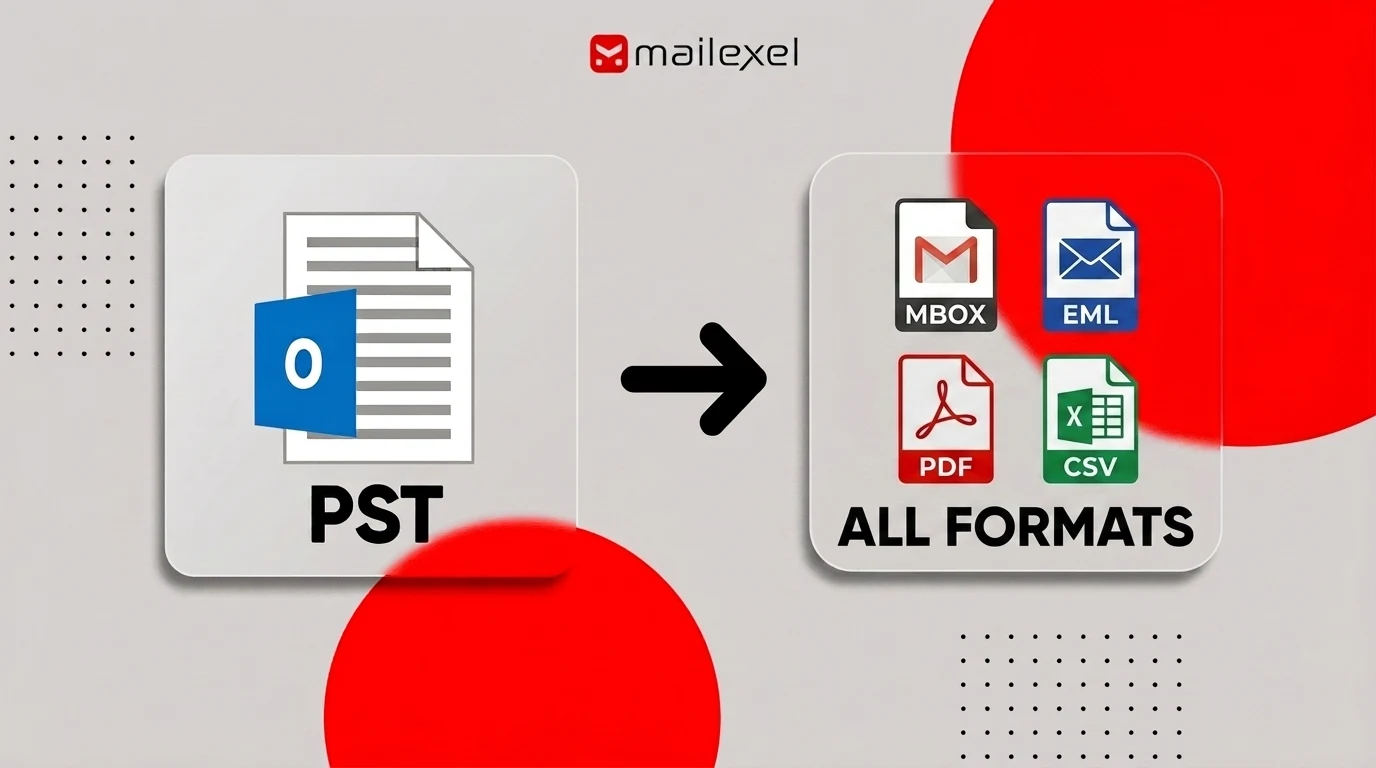
The short version: a PST converter reads the file directly, bypasses Outlook entirely, and writes structured output to whatever format you actually need. EML, MBOX, PDF, CSV, or direct migration to Gmail or Office 365. The folder hierarchy comes out intact. Attachments come along. You don't end up with a blob of output that somehow dropped half your folders.
What a PST Converter Does (And Why Outlook's Export Isn't It)
Outlook has its own export tool — File → Open & Export → Import/Export — and it works for the use case it was designed for: moving data between Outlook profiles, creating a backup PST. That's the box it fits in. Outside of that, it gets limited fast. It can't write to EML or MBOX or PDF, and cloud migration isn't on the menu.
A dedicated PST converter reads the file directly — no open app needed, no file handler to navigate through — and writes structured output. One email per file. Folder hierarchy preserved. Attachments included. The practical difference shows up most clearly when you're importing to a different email client or handing files off to a pipeline: instead of something you have to work around, you get organized files that behave the way you'd expect.
Here's when you actually need one instead of just Outlook's export:
- Migrating to a new email client. Thunderbird, Apple Mail, eM Client, Zimbra — none of them read PST natively. EML or MBOX is how you move your archive without losing anything.
- Decommissioning Outlook licenses. When an org moves platforms, the PST archives need to follow. A converter gets them into the destination format cleanly.
- Legal and compliance archiving. Legal teams need emails exported to PDF or MSG with full metadata preserved — sender, recipient, timestamps, attachment filenames, message headers. A converter does this consistently, across thousands of emails, without babysitting.
- Accessing old archives without Outlook. PST files from decommissioned machines can sit locked and useless for years. A converter opens that data without reinstalling a decade-old version of Outlook.
- Extracting specific data types. Contacts to CSV, calendars to ICS, tasks to a spreadsheet — converters handle non-email items too, which Outlook's export often skips entirely.
Outlook's Import/Export is the right tool for moving data between Outlook profiles or creating a backup PST. A converter is for getting data out of PST format entirely.
Output Formats: Which One Do You Need?
Pick the wrong output format and you'll be running the conversion again. Here's what each one is actually for — and where people usually pick the wrong one.
EML and MBOX
are both for desktop email clients, but they're not interchangeable. EML creates one file per email — good for archives where you need individual messages accessible and portable. MBOX puts everything in a folder into a single concatenated file, which is how Thunderbird stores mail natively. Moving to Thunderbird? Use MBOX. For anything else, EML tends to be more flexible.
MSG
is Microsoft's own single-email format. It opens in Outlook and integrates with other Microsoft tools. If you're staying in the Microsoft ecosystem, fine. If you're leaving Outlook, there's no real reason to use it.
is the right call for legal archiving and compliance — headers, body, attachment references all fixed and non-editable. Worth knowing: PDF output quality varies a lot between converters. Some mangle formatting or drop inline images. Test on a few emails from a complex folder before committing an important archive to this format.
HTML
preserves email formatting and inline images. Useful for browsing archives without an email client installed.
TXT
strips everything to plain text. Only reason to use it: the downstream process — a search script, an NLP pipeline — specifically needs raw text and has no use for structure or headers.
CSV and ICS
handle non-email data. Contacts to CSV — imports into Excel, Google Contacts, most CRM platforms. Calendar events to ICS — works with Google Calendar, Apple Calendar, any CalDAV system. If your PST has both email and contacts, plan two separate export passes; they can't share a format.
Cloud migration
skips files entirely. Authenticate against Gmail, Google Workspace, or Office 365, point the converter at the PST, and email lands directly in the destination inbox. Test on a small subset first before committing a full archive.
How to Convert a PST File (Step-by-Step)
A dedicated converter handles the whole job in one run — reading the PST, scanning all content, surfacing a folder preview, and writing output files with hierarchy intact.
After working through more PST archives than I'd prefer — including some genuinely painful ones — the thing I've come to prioritize above everything else is whether the converter shows you the folder structure before running, not after. I had a 22 GB archive from a decommissioned account nobody remembered, tried two tools first. One timed out on scan. The other got through but produced output with no folder preview, and no way to verify what it had actually processed. I switched to MailExel out of frustration more than anything else. The scan took longer than I'd have liked, but it surfaced the complete folder tree and item counts before committing to anything. That's how I found out the previous tool had quietly skipped six nested folders. Without a preview, there's no way to catch that.
To follow these steps, you'll need the software installed. Download it below — takes about a minute, then come back and start at Step 1.
Launch the application and use Add Files to bring in your PST — or Add Folder if you're processing multiple PSTs from several accounts. Everything loads as one job. Once added, your files show up in the main panel ready for scanning.
Once loaded, the software automatically scans all content in the PST: emails, contacts, calendars, notes, tasks. Nothing to do here. Most archives scan in a few minutes; larger PSTs take proportionally longer.
Before running anything, the preview panel shows your full folder structure with item counts for each folder.
Look at it before you run. I skipped this once — one of those weeks where three other things were running behind, and I was sure this particular conversion was simple — and nearly moved a client's entire Deleted Items folder into their new archive. Years of junk they'd cleaned out on purpose. Caught it maybe 30 seconds before it would've run. The preview check takes half a minute.
Select the format that fits your destination — EML for desktop clients, MBOX for Thunderbird specifically, PDF for legal archives, CSV for contacts. Set a destination folder with enough space. The converter mirrors your PST folder structure in the output.
If you only need a specific date range — a compliance pull for a particular incident window — most converters let you filter here rather than converting the full archive.
Start the export. The tool processes selected folders and writes output files to your destination, preserving the original hierarchy. When it finishes, open a handful of output files in your target application and verify that body content and attachments are intact before calling the job done.
What to Actually Look for in a PST Converter
There's a real quality range. What separates converters that hold up on difficult archives from the ones that fall apart on anything outside a demo file:
Operates independently of Outlook.
When you're processing PSTs from decommissioned hardware, reinstalling Outlook isn't always an option — and even when it is, it's a pain. A converter that reads PST directly also tends to handle older and corrupted files better than tools that go through Outlook's file handler. This is the first thing I check before downloading anything.
Preview panel before conversion.
Folder structure and item counts, visible before you run. Without this, you find out what got missed after the export is already done — usually when someone asks where half their folders went.
Folder hierarchy preservation.
Output should mirror input. Converters that flatten everything into one folder are painful to work with afterward, especially for archives with years of organized structure.
Attachment handling.
Some tools drop attachments silently on default settings — check the attachment export option before running and verify a few attachment-heavy emails afterward.
Support for all PST item types.
Contacts, calendar events, tasks, and notes each need format support. Email-only coverage misses a significant chunk of what most PST archives actually contain.
Recovery mode for corrupted files.
PST files corrupt — improper shutdowns, oversized archives, bad sectors. Recovery mode can get content out of PSTs that the standard file handler won't touch.
Batch processing.
Running multiple PSTs one at a time on a large migration costs a full day. If batch mode isn't there, it's a problem at any real scale.
Common Problems and How to Fix Them
Most conversions hit at least one snag. Here's what usually causes the common ones.
The converter can't open the PST file.
Two causes. If Outlook is still running, close it — it locks the PST. If that's not it, likely corruption. Run ScanPST.exe (search "Inbox Repair Tool" in Windows) to check and repair. If ScanPST can't fix it, try the converter's recovery mode — dedicated converters often get content out of PSTs that Outlook's file handler won't.
Output files are missing attachments.
Check the attachment settings. Some tools have attachment export disabled by default. Re-run with it explicitly enabled.
Folder structure is completely flat.
Everything in one folder. This is a tool limitation, not a setting — switch to one that actually preserves hierarchy.
Fewer emails than expected.
Either partial corruption (run ScanPST.exe) or the converter only processed top-level folders and skipped subfolders. The preview panel shows this before you run.
Contacts or calendar data missing.
These need a separate export pass with a different format. Run email and non-email items as separate jobs.
Garbled characters.
Encoding issue — converter defaulted to ASCII or Windows-1252. Set output encoding to UTF-8 and re-run. Comes up most with Arabic, Chinese, accented characters, or other non-ASCII scripts.
- Close Outlook completely before starting any PST conversion.
- Work from a copy of the PST, not the live file.
- Run ScanPST.exe on any PST from a machine that crashed or was shut down improperly.
- Check the preview panel before running — confirm folder counts and scope look right.
- For non-email items, plan a separate export pass with the right output format.
- Verify UTF-8 encoding before running on any archive with international content.
- Spot-check a few output files before treating the job as done.
- Keep the original PST until you've confirmed the output is complete.
Frequently Asked Questions
Does a PST converter require Microsoft Outlook to be installed?
Not a good one. A proper converter reads PST directly without going through Outlook's file handler — it runs on machines without Outlook and often handles older or corrupted archives better than Outlook itself does.
Can I convert multiple PST files at once?
Yes, if the converter supports batch mode — most dedicated tools do. Load multiple PST files or a folder of PSTs and run them as one job. Output is typically organized by source file to keep archives from mixing.
Will contacts and calendar entries convert too?
Generally yes, but they'll need a separate pass. Contacts export to CSV or vCard, calendar events to ICS. Most converters handle both types — they just can't share an output format with email, so plan two jobs if your PST has all of it.
What happens to attachments during conversion?
A solid converter keeps attachments either embedded in the output (EML handles this via base64 MIME encoding) or exported to a folder alongside it. Check that attachment export is enabled before running — some tools have it off by default — and spot-check a few files afterward.
Can a PST converter open a file that Outlook can't?
Often yes. Converters that read PST directly tend to be more tolerant of file damage than tools that go through Outlook's file handler. Many include a recovery mode specifically for corrupted PSTs. Worth trying before writing the archive off.
Wrapping Up
The gap a PST converter fills is specific: getting data out of PST format and into whatever your workflow needs, folder structure and attachments intact, with no Outlook required at either end. Outlook's export doesn't do that.
Before you start: pick your output format based on the destination. Check the preview panel before running. When the export finishes, open a few output files in the target application to confirm content and attachments landed correctly. That verification step is easy to skip and consistently produces the kind of surprise nobody wants to deal with after the fact.
Got a conversion situation giving you trouble? Drop it in the comments.